
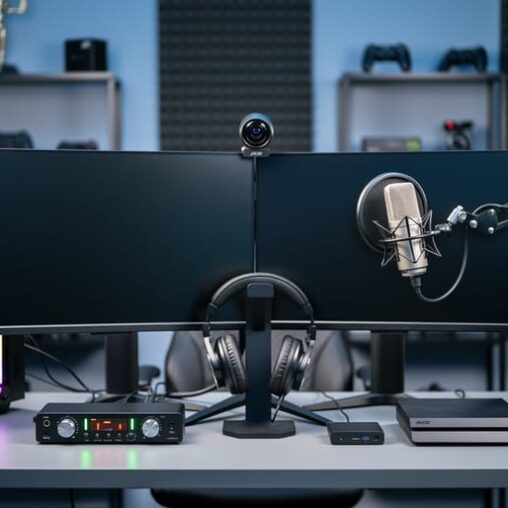
Position your camera at eye level or slightly above to create an authentic connection with viewers—most successful streamers place their webcam directly atop their primary monitor, angled 5-10 degrees downward for optimal facial framing. Invest in a dedicated USB microphone with a cardioid pickup pattern rather than relying on headset audio; position it 6-8 inches from your mouth at a 45-degree angle to capture clear voice while minimizing keyboard clatter and mouse clicks.
Configure your streaming software encoder settings to match your internet upload speed—test your connection speed first, then allocate 70-80% of your available upload bandwidth to your stream bitrate for stable broadcasts without dropped frames. Build your setup with redundancy in mind by running dual PC configurations for resource-intensive games, dedicating one machine to gameplay and another to encoding and managing overlays, alerts, and chat interactions.
Proper lighting transforms amateur streams into professional broadcasts, so position two softbox lights or LED panels at 45-degree angles on either side of your camera to eliminate harsh shadows and create balanced, flattering illumination. Your audio interface matters more than viewers realize—route your microphone through a mixer or audio interface with real-time monitoring capabilities so you can adjust levels on the fly without interrupting your broadcast flow.
The difference between hobbyist and professional streaming setup lies in thoughtful equipment placement, optimal software configuration, and understanding how each component works together to deliver consistent, high-quality broadcasts that keep audiences engaged and returning for every stream.
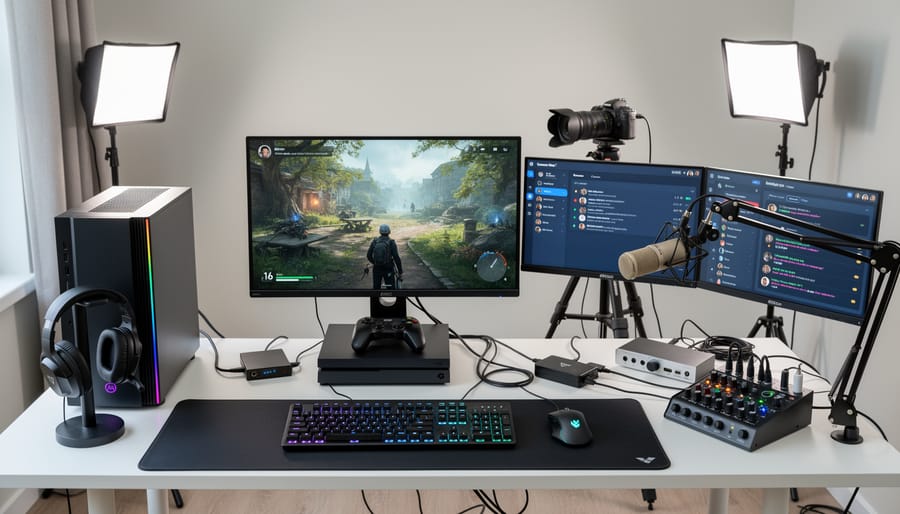
The Core Components Every Stream Needs
Your Gaming Console: The Foundation
Your gaming journey starts with the console itself, and understanding each platform’s streaming capabilities is crucial for building the right setup. Whether you’re Team Xbox, PlayStation loyal, or rocking the Nintendo Switch, each system handles streaming differently.
The PlayStation 4 and PS5 offer built-in streaming to Twitch and YouTube, making them beginner-friendly options. However, for professional-grade broadcasts with overlays and advanced features, you’ll need an external capture card. The PS5’s HDCP (High-bandwidth Digital Content Protection) requires specific workarounds, so plan accordingly when setting up your equipment.
Xbox Series X/S and Xbox One consoles similarly support direct streaming through their native apps, but serious streamers quickly outgrow these basic features. An external capture card unlocks the ability to use professional broadcasting software like OBS or Streamlabs, giving you complete control over your stream’s look and feel.
The Nintendo Switch presents unique challenges since it lacks native streaming capabilities entirely. You’ll absolutely need a capture card to broadcast Switch gameplay, which actually works in your favor because you’ll start with professional-grade equipment from day one.
Here’s the key takeaway: while built-in streaming features are great for testing the waters, capturing console footage through dedicated hardware gives you the flexibility and quality needed for events, tournaments, and serious content creation. This external capture approach ensures consistent video quality, reduces strain on your console’s performance, and opens up possibilities for multi-camera setups at larger gaming events.
Capture Cards: Bridging Console to Computer
A capture card is the essential bridge that takes your console gameplay and sends it to your computer for streaming. Think of it as a translator that converts your PlayStation, Xbox, or Switch video signal into a format your streaming software can read and broadcast. Without one, console streamers are stuck using their system’s built-in streaming features, which typically offer limited customization and lower quality output.
You’ll encounter two main types: internal and external capture cards. Internal cards install directly into your PC’s PCIe slot, offering rock-solid performance with virtually zero latency. They’re perfect for dedicated streaming rigs and event setups where reliability is non-negotiable. External capture cards connect via USB, making them incredibly portable and ideal for streamers who need flexibility or don’t want to crack open their computer case.
For smooth, professional-quality captures, look for these key specs: 1080p resolution at 60fps minimum (4K passthrough is a bonus for future-proofing), hardware encoding to reduce strain on your PC, and ultra-low latency under 100 milliseconds. The latency factor is crucial because delays between your controller input and on-screen action can throw off your gameplay during competitive matches.
Budget-conscious streamers can find reliable external options starting around 150 dollars, while professional-grade internal cards range from 200 to 400 dollars. For large-scale esports events where multiple setups run simultaneously, investing in quality capture hardware ensures every station delivers broadcast-ready footage without technical hiccups that could derail your tournament.
The Broadcast Computer: Your Control Center
Your broadcast computer is the engine room of your streaming setup, handling the intense dual workload of running games and encoding your stream simultaneously. Getting the specs right means the difference between buttery-smooth broadcasts and frustrating lag that’ll send viewers clicking away.
For minimum viable streaming, you’ll need at least an Intel i5 or AMD Ryzen 5 processor (preferably 9th gen or newer), 16GB RAM, and a dedicated graphics card like the NVIDIA GTX 1660 or AMD RX 580. This setup handles most esports titles at 1080p/60fps while streaming to platforms like Twitch or YouTube. However, if you’re serious about quality or planning competitive tournament broadcasts, these baseline specs will struggle.
The recommended configuration steps things up significantly: an Intel i7/i9 or AMD Ryzen 7/9 processor gives you the multi-threading power to encode without compromising game performance. Bump RAM to 32GB for comfortable multitasking between your streaming software, game, chat overlays, and browser sources. For the GPU, an NVIDIA RTX 3060 or better unlocks hardware encoding through NVENC, dramatically reducing CPU load while maintaining exceptional stream quality.
Here’s the game-changer: modern NVIDIA cards handle encoding so efficiently that your CPU stays free to focus on game performance. This matters especially during intense moments in competitive matches when frame drops simply aren’t acceptable. Storage-wise, install your games and streaming software on an SSD for faster load times and smoother operation. Your audience will notice the difference in responsiveness and overall broadcast polish.
Audio and Visual Excellence: Making Your Stream Pop
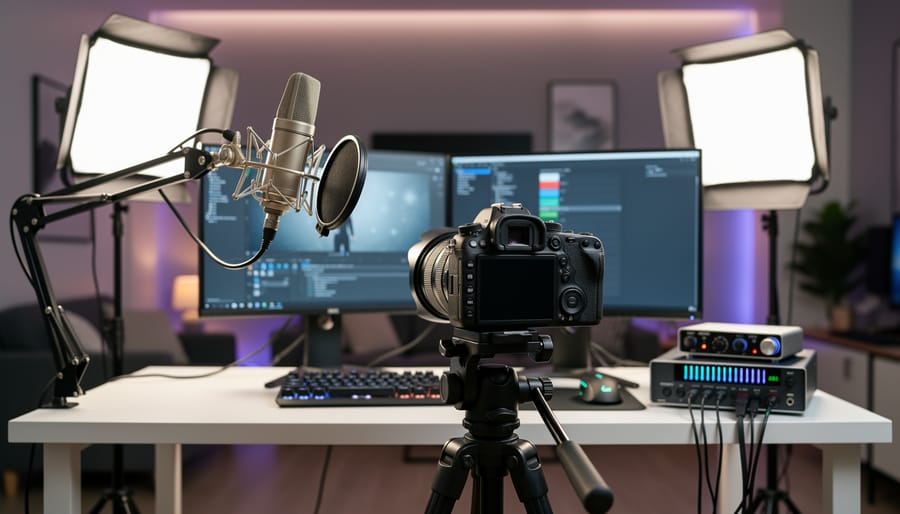
Microphones That Make You Sound Like a Commentator
Your microphone choice can make or break your stream’s audio quality, and trust us, viewers will click away faster than a clutch play if your audio is subpar. Let’s break down your options.
USB microphones are the plug-and-play champions for streamers getting started. Models like the Blue Yeti or HyperX QuadCast offer excellent quality straight out of the box, connecting directly to your PC without additional hardware. They’re perfect for bedroom streamers and deliver surprisingly professional results. Expect to invest between $100-150 for solid USB options that’ll keep your audience engaged.
XLR microphones step up the game for tournament-quality broadcasts. These professional-grade mics like the Shure SM7B or Audio-Technica AT2035 require an audio interface to connect to your computer, but the payoff is worth it. The interface converts your analog audio signal to digital, giving you greater control over gain levels and sound processing. Popular interfaces like the Focusrite Scarlett 2i2 or GoXLR provide the bridge between your XLR mic and streaming software.
Why go XLR? The audio fidelity is noticeably superior, especially during intense gameplay moments when you’re rapid-fire calling plays or reacting to clutch victories. The cleaner sound reproduction means your commentary cuts through game audio without distortion, keeping your content crisp even at higher volumes.
For gaming commentary specifically, look for microphones with cardioid pickup patterns that focus on your voice while minimizing keyboard clicks and background noise.
Cameras and Facial Cam Setup
Your facial cam setup can make or break viewer engagement during live streams. When audiences see genuine reactions during clutch plays or intense moments, connection skyrockets. Let’s break down your options and best practices for capturing those priceless expressions.
For webcams, the Logitech C920 or C922 deliver solid 1080p quality at 30-60fps, perfect for most streaming scenarios. They’re plug-and-play, budget-friendly, and handle variable lighting reasonably well. If you’re leveling up your production value, DSLR cameras like the Sony A6400 or Canon EOS M50 offer superior image quality with beautiful depth of field effects that make streamers pop off the screen. You’ll need a capture card to connect DSLRs to your streaming setup, but the cinematic quality pays dividends for professional broadcasts and tournaments.
Position your facial cam at eye level or slightly above, roughly arm’s length away. This creates natural, flattering angles that keep viewers focused on reactions rather than awkward perspectives. Mount it directly above or beside your main monitor so you’re naturally looking toward the camera when checking gameplay.
Lighting is non-negotiable for quality facial cam footage. Ring lights provide even, flattering illumination that eliminates harsh shadows. Position your key light source in front of you at a 45-degree angle. Natural window light works great during daylight hours, but add artificial lighting for consistency during evening streams.
The investment in proper facial cam setup transforms passive viewers into engaged community members who return stream after stream for both gameplay and personality.
Lighting: The Most Overlooked Equipment
Here’s the reality: you can have the best camera and microphone on the market, but without proper lighting, your stream will look amateur. Lighting is the secret weapon that separates decent streams from professional broadcasts, yet it’s often the last thing streamers consider. The good news? You don’t need Hollywood-level equipment to make a dramatic difference.
For budget-conscious streamers, ring lights offer an excellent starting point. These circular LED lights provide even, flattering illumination and typically cost between $30-$100. Position one directly in front of your face, slightly above eye level, and watch your video quality transform instantly. For those ready to level up, investing in a basic three-point lighting setup will give your stream that polished, professional look.
Three-point lighting sounds technical, but it’s straightforward. Your key light is your main source, positioned at a 45-degree angle from your face. The fill light goes on the opposite side to soften shadows, set at lower intensity. Finally, place a back light behind you to create separation from your background and add depth to the image. This setup works whether you’re streaming from your bedroom or setting up a tournament broadcast.
Common mistakes to avoid: never rely solely on overhead room lighting, which creates harsh shadows under your eyes and nose. Skip the RGB gaming lights as your primary source during streams as they create inconsistent color temperatures that make your footage look unpredictable. And don’t position lights behind your monitor, causing screen glare that reflects directly into your camera.
Proper lighting isn’t just about visibility; it’s about creating an environment where your audience stays engaged. When viewers can see your reactions clearly during clutch moments, the connection intensifies and your content becomes more compelling.
Professional Broadcast Features That Engage Audiences
Live Tickers and On-Screen Graphics
Nothing elevates a gaming broadcast quite like polished on-screen graphics that keep your audience locked into the action. Live tickers and overlays transform a basic stream into a professional production, displaying crucial information like scores, player stats, and tournament brackets in real-time.
Modern streaming software makes implementing these graphics more accessible than ever. OBS Studio offers free overlay capabilities through browser sources and image layers, perfect for beginners building their first graphics package. For next-level production value, dedicated tools like vMix, XSplit, or StreamElements provide robust ticker systems with automated score updates and customizable templates. These platforms integrate seamlessly with popular games, pulling live stats directly from matches without manual input.
Creating your graphics package starts with understanding your brand identity. Design overlays that complement your content without overwhelming the gameplay. Keep score tickers compact and positioned strategically, typically along the bottom third or top corners of the screen. Player cams, social media handles, and sponsor logos should feel cohesive, using consistent colors and fonts throughout.
For tournament organizers and event producers, consider investing in production software with operator-friendly interfaces. Your technical team needs to update scores quickly between rounds without disrupting the broadcast flow. Template-based systems allow rapid customization for different matches while maintaining visual consistency across your event.
Real-time information keeps viewers engaged, especially during competitive matches where every elimination and objective matters. Displaying current standings, upcoming match schedules, and viewer participation elements like polls or giveaway countdowns transforms passive watching into interactive experiences. The key is balance: provide enough information to enhance understanding without cluttering the screen space where the gaming magic happens.
Multi-Camera and Multi-Player Setups
Running a tournament stream with multiple players requires sophisticated equipment and strategic planning to keep your audience engaged. The key is creating dynamic content that captures all the action while maintaining professional quality throughout your broadcast.
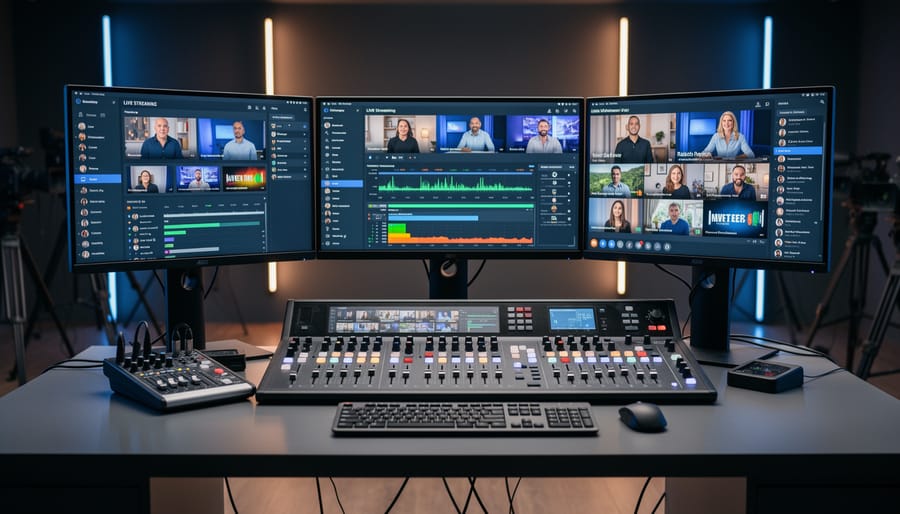
Start with a video switcher, the command center of your multi-camera operation. Hardware switchers like the ATEM Mini Pro or software solutions like OBS Studio allow you to seamlessly transition between player cameras, gameplay feeds, and commentator shots. For serious tournament production, consider dedicated streaming PCs separate from your gaming machines to prevent performance drops during crucial moments.
Your camera setup should include at least one wide shot capturing the overall tournament atmosphere, plus individual player cameras for face reactions. These reaction cams add personality and drama to competitive matches, letting viewers connect with players emotionally. Position cameras at slight angles rather than directly facing players to create more visually interesting shots.
Audio management becomes exponentially more complex with multiple participants. Individual XLR microphones for each player, routed through a mixer, give you control over levels and prevent audio bleed between stations. Always use headphones for players to avoid echo and feedback issues that plague multi-station setups.
Network infrastructure cannot be overlooked. Each gaming station needs dedicated, low-latency internet connections. Use wired ethernet exclusively for competitive play, with managed switches allowing you to prioritize traffic and monitor bandwidth in real-time.
Create preset scenes in your switching software with common views: full gameplay, split-screen comparisons, picture-in-picture with reactions, and wide tournament shots. This preparation lets you focus on capturing exciting moments rather than fumbling with technical controls during intense gameplay sequences.
Software and Streaming Platforms: Bringing It All Together
Broadcasting Software Essentials
Your streaming software is the command center that brings all your hardware together into one polished broadcast. Think of it as your mission control—this is where your camera feeds, microphone audio, gameplay footage, and overlays unite to create the viewing experience your audience will see.
OBS Studio remains the gold standard for streaming software, and for good reason. It’s completely free, incredibly powerful, and compatible with every major platform from Twitch to YouTube. The learning curve might seem steep at first, but once you understand the basics of scenes and sources, you’ll wonder how you ever lived without it. OBS gives you full control over your stream’s visual composition, allowing you to switch between gameplay, camera angles, and branded graphics seamlessly.
Streamlabs offers a more user-friendly interface with built-in alerts, widgets, and monetization tools. It’s particularly popular with streamers who want everything in one package without diving too deep into technical configurations. The trade-off is slightly higher system resource usage, so factor in your computer’s capabilities when choosing.
For professional esports events and corporate broadcasts, consider XSplit or vMix. These premium options provide advanced features like instant replay, multi-track recording, and professional transitions that elevate production quality to broadcast television standards.
Start by creating basic scenes: a “gameplay” scene with your game capture and webcam overlay, a “starting soon” screen with your branding, and a “break” scene. Connect your microphone and camera as sources, then test everything before going live. Remember, your software is only as good as the equipment feeding into it—quality inputs equal quality output.
Platform Selection: Where to Stream
Choosing the right platform can make or break your streaming success. While Twitch dominates the gaming landscape with its built-in gaming community and interactive features like real-time chat and channel points, YouTube Gaming offers superior discoverability through search engine optimization and seamless integration with existing YouTube channels. For most gaming content and esports tournaments, these two platforms remain your primary options.
Twitch excels for campus esports competitions and public tournaments where audience interaction drives the experience. The platform’s raid features and category browsing help new viewers discover your stream organically. However, Twitch’s strict content guidelines require careful monitoring during live events.
YouTube Gaming shines for corporate clients and professional events requiring polished presentations. The platform automatically archives streams as regular videos, maximizing content longevity and reach. This matters significantly when sponsors want measurable ROI beyond live viewership numbers.
For corporate events mixing gaming with traditional business content, consider multi-streaming to both platforms simultaneously using tools like Restream or OBS Studio’s built-in capabilities. This approach captures different audience segments without additional production costs.
Facebook Gaming and LinkedIn Live serve specialized purposes. Facebook works well for community college events targeting local audiences, while LinkedIn suits corporate team-building gaming sessions or industry networking events.
Platform selection ultimately depends on where your target audience already spends time. Campus esports teams building community should prioritize Twitch, while companies showcasing gaming initiatives to stakeholders benefit from YouTube’s professional presentation. Test multiple platforms during practice runs before committing to your primary streaming destination.
Setup Considerations for Different Event Types
Tournament and Competition Setups
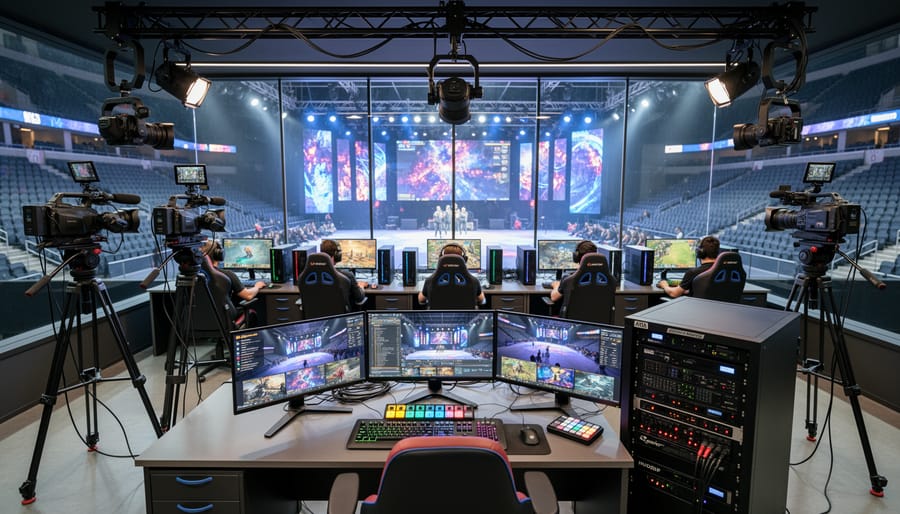
Tournament and competition setups demand bulletproof reliability and professional-grade redundancy. When hundreds or thousands of viewers are watching live, equipment failure isn’t an option.
Start with your primary streaming infrastructure: enterprise-grade encoding machines, professional cameras with backup units, and multiple capture cards for simultaneously recording player feeds. For managing multiple gaming stations, invest in a robust network switch capable of handling high bandwidth without lag. Each station should have dedicated capture equipment to feed into your main production setup.
Backup systems are non-negotiable for competitive events. Deploy redundant encoders running parallel streams to different platforms or destinations. Keep spare cameras, cables, and capture devices ready for instant deployment. Many tournament organizers run a hot backup streaming PC that mirrors the primary setup, ready to take over within seconds if issues arise.
Your audio setup requires particular attention during competitions. Use a professional mixing board with multiple inputs for player comms, commentator mics, and game audio. This allows you to balance levels perfectly and isolate any problematic channels without affecting the broadcast.
For zero downtime during critical moments, implement an uninterruptible power supply system for all critical equipment. Position technical staff with clear sightlines to every gaming station, and establish communication protocols using headsets for quick problem resolution. Test every connection, backup, and failover system before the event begins. Professional tournaments often conduct full rehearsals to identify potential issues before competitors arrive.
Corporate and Campus Events
Taking your stream to corporate and campus environments requires a different approach than home streaming setups. These venues demand professional presentation standards while maintaining the energy that makes gaming content exciting.
For branded corporate events, your equipment setup needs to reflect company professionalism. This means clean cable management, branded overlays that match corporate guidelines, and reliable equipment that won’t fail during a product launch or team building session. Consider modular setups where you can quickly swap branded graphics and adjust lighting to match different corporate color schemes. Your camera angles should be wider to capture multiple participants, and audio quality becomes even more critical when executives are involved.
Campus gaming events present unique challenges with portable solutions. You’ll need equipment that travels well between venues, sets up quickly, and withstands the energy of enthusiastic college gamers. Portable gaming kiosks work best with lightweight cameras on flexible mounts, compact capture cards, and streaming laptops that can handle multiple simultaneous feeds. Battery backup systems are essential since campus venues don’t always have reliable power access near optimal streaming positions.
The key difference in these environments is redundancy. Unlike home streaming where you can restart if something fails, corporate and campus events happen on fixed schedules. Pack backup cables, extra batteries, and duplicate critical components like capture cards and microphones. Test everything twice before the event starts.
Consider networking requirements too. Corporate firewalls and campus WiFi networks often restrict streaming protocols, so always have a backup internet solution like a mobile hotspot. Coordinate with IT departments ahead of time to whitelist necessary streaming platforms and ensure sufficient bandwidth allocation for your broadcast.
Building a professional live streaming setup doesn’t have to be overwhelming. The right equipment configuration transforms ordinary broadcasts into engaging, broadcast-quality experiences that keep audiences locked in from start to finish. Whether you’re hosting your first local tournament or managing a major esports event, investing in quality streaming gear directly impacts your viewership retention and overall event success.
The beauty of modern streaming technology is its scalability. Start with the core components—a reliable camera, clean audio capture, and stable encoding—then expand your setup as your ambitions grow. This approach keeps initial costs manageable while ensuring you’re never compromising on the essentials that define stream quality. Even entry-level professional equipment delivers noticeably better results than consumer-grade alternatives, making the investment worthwhile from day one.
Remember that professional streaming equipment isn’t just about capturing gameplay; it’s about creating an immersive experience that showcases your event’s energy and excitement. Quality visuals and crisp audio keep viewers engaged, while features like multi-camera switching and custom overlays elevate your production value to match what audiences expect from top-tier esports broadcasts.
The equipment choices you make today set the foundation for your streaming future. Whether you’re building a permanent setup or exploring rental options for specific events, prioritize components that deliver reliability and flexibility. Your audience will notice the difference, and that professional polish translates directly into higher engagement, better retention, and ultimately, more successful events that participants and viewers alike will remember.