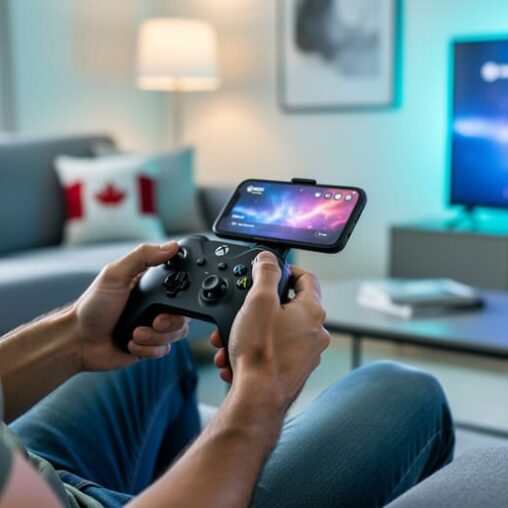
You can start cloud gaming on Xbox in a few minutes, and no console is required. Xbox Cloud Gaming streams eligible Xbox games you own, or games from your Xbox Game Pass plan, straight to your phone, tablet, smart TV, PC, and more. It’s available in Canada, so the main prerequisites are an Xbox account, a supported device, and a solid internet connection.
The setup is simple. Open the Xbox Cloud Gaming app, sign in with the Xbox account you use for cloud gaming, pick your Xbox Nano Controller, and choose the cloud option from the “…” menu. That’s the cloud connect flow, and it gets you from couch to game without a download queue.
Think of it as a game library that follows you around. Same account, same titles, whatever screen is closest. Below, we cover what you need, the exact steps, safe account habits, and how to confirm everything’s running smoothly. We’ll also be upfront about what streaming can’t replace. Our team builds esports event setups and runs high-quality broadcast production, and a live tournament floor asks for things a home stream simply wasn’t designed to deliver.
What Xbox Cloud Gaming Is and What You Can Stream From Canada
Think of cloud gaming like streaming a movie, except you’re the one pressing the buttons. The game doesn’t run on your phone or TV. It runs on powerful remote hardware, and the picture gets sent to your screen over the internet while your button presses travel back the other way. That’s why a modest device can still play a big-budget Xbox title.
Good news for Canadian players: Xbox Cloud Gaming is available here, and the available countries include Canada. You’ve got two ways in. You can stream eligible owned games from your own library, or you can use an Xbox Game Pass plan to play what that plan includes.
The word “eligible” matters. Not every game you own or see in a catalogue is guaranteed to be streamable, so check a title’s listing before you count on it for game night.
You also aren’t locked to one screen. The supported devices for streaming include phones, tablets, smart TVs, PCs, and more.
That’s the whole idea: your screen is just the window, and the heavy lifting happens elsewhere. Next up, let’s cover exactly what you need to have ready before you hit play.
What You’ll Need Before You Start Cloud Gaming on Xbox
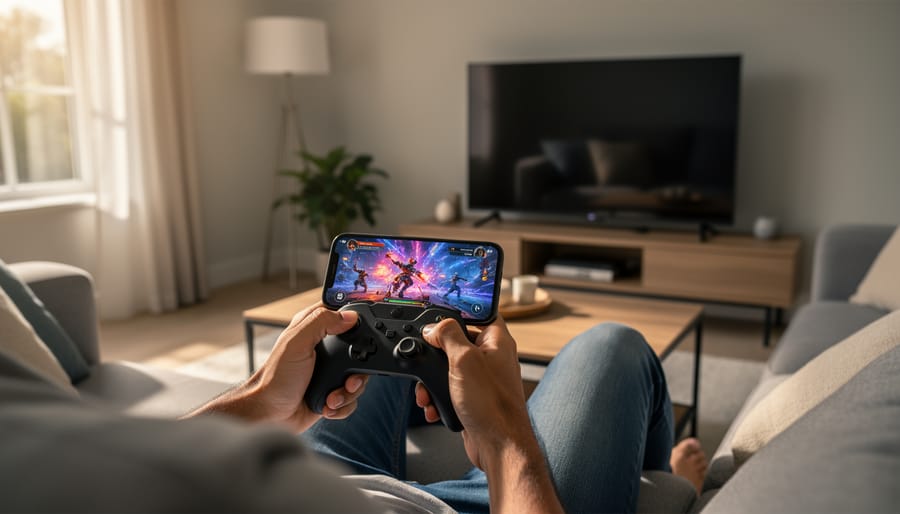
Good news: getting ready for Xbox Cloud Gaming doesn’t take a pile of gear. If you can stream a video, you’re already most of the way there. Here’s your pre-game checklist:
- An Xbox account to sign in with.
- An eligible Xbox game you own, or an Xbox Game Pass plan.
- A supported screen, like a phone, tablet, smart TV, or PC.
- A stable, reliable internet connection.
- A controller, if you’d rather not play on touch controls.
A quick word on that last connection point, because it matters more than anything else on the list. With cloud gaming, the game runs on remote hardware and the picture gets streamed to you, so the quality of your connection shapes how the game feels. The jargon you’ll hear is “latency,” which just means the tiny delay between pressing a button and seeing it happen on screen. Lower is better, and a steady connection keeps it down.
Keep in mind that “eligible” is the key word on the game side. Not every title is guaranteed to be streamable, so it’s worth confirming that the game you want is available before you get your heart set on a late-night session.
As for controllers, a physical one is optional. Which models work with which devices is something you’ll want to check on the official Xbox support pages, since that list can change. We’ll cover the one verified controller setup in a later step.
Step-by-Step: How to Start Playing Xbox Cloud Gaming
Choosing the Right Screen for Your Setup
The best screen is the one that fits how you want to play. Xbox Cloud Gaming works on a phone, tablet, smart TV, PC, and more, so you can match the device to the moment.
A phone is your go-to for portable play, perfect for a quick session on the move. A tablet gives you a bigger picture while staying easy to carry. A smart TV is made for couch play, with a big screen for the whole room. A PC suits desk play, where you’re already set up for longer sessions.
None of these is “better.” Pick based on where you’ll be and how long you plan to play. Here’s the quick path from start to first game:
- Confirm you own an eligible Xbox game or have an Xbox Game Pass plan.
- Choose your device: phone, tablet, smart TV, or PC.
- Open Xbox Cloud Gaming on that device.
- Sign in with your Xbox account.
- Pick a game and launch it.
Once you’re in, you can switch screens whenever your plans change.
Using Cloud Connect With Your Xbox Nano Controller
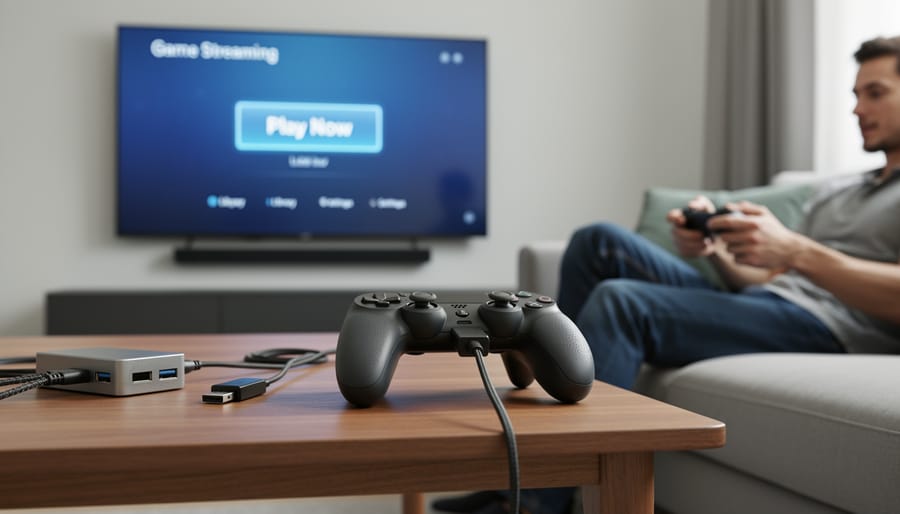
Got an Xbox Nano Controller? Cloud connect is the quickest way to get it talking to your stream. Here’s the flow, step by step.
First, open the Xbox Cloud Gaming app on your device. Next, sign in with the Xbox account you use for cloud gaming. This matters, because the connection ties back to that account. Then select your Xbox Nano Controller from the options on screen. Finally, open the “…” menu and choose the cloud option.
That’s the whole sequence. Four moves, and you’re set up to play.
Keep in mind this walkthrough covers the Nano Controller only. If you’re using a different controller, we won’t guess at how it behaves here. Check the official Xbox support pages for the current controller details before you plan around it.
If the option doesn’t show up where you expect it, go back and confirm you’re signed in with the right Xbox account. A mismatched sign-in is an easy thing to miss, and fixing it usually gets you moving again.
Controller Options: What to Know and What to Check Yourself
A physical controller makes a real difference in fast games. Buttons and sticks give you precise, instant input, while touch controls on a phone or tablet can feel cramped when the action heats up. Racing, fighting, and shooters are where you’ll notice it most.
Here’s what we can confirm: Xbox Cloud Gaming supports a cloud connect flow with the Xbox Nano Controller. Open the app, sign in with the Xbox account you use for cloud gaming, select your Xbox Nano Controller, and choose the cloud option from the “…” menu. That’s the one controller path we’re vouching for here.
Beyond that, don’t take our word, or anyone else’s, for what else works. Controller compatibility can change as devices and apps update, so a list that’s accurate today may be stale next month. Check the official Xbox support pages for the current list of compatible controllers, and look up how touch controls work on your specific phone, tablet, or smart TV.
A quick tip: if you already own a controller, test it on your chosen device before you settle in for a long session. A few minutes of checking beats discovering a mismatch mid-match.
Safety Warnings and Smart Habits for Streaming Play
Streaming a game is easy to start and just as easy to overdo, so a few habits are worth building from the first session. Your Xbox account holds your purchases and personal details, so treat it like any other important login.
Here’s a quick checklist to keep nearby:
- Keep your Xbox account credentials private, and sign out whenever you play on a shared or borrowed device.
- Watch your mobile data when you stream away from Wi-Fi, since video streaming can use plenty of it.
- Be cautious on public networks, and avoid signing in over connections you don’t trust.
- Take regular breaks so long sessions don’t leave you tired or strained.
- Stop and troubleshoot if you notice stuttering or repeated disconnects.
That last point matters more than it looks. If the picture keeps freezing or the stream keeps dropping, pushing on rarely helps and usually just frustrates you, especially in a competitive match. Pause, check your connection, and give it a moment before jumping back in. A short reset beats a bad session, and your account and your data plan will both thank you.
Verify It’s Working and Fix Common Hiccups
You’ll know within a minute or two whether your stream is behaving. Good signs: buttons respond the instant you press them, the picture stays sharp and steady, and the sound lines up with the action on screen. If your character reacts a beat late, or the image keeps blurring and freezing, something in the chain needs a nudge.
Start with the quick fixes, because they solve most problems:
1. Close the Xbox Cloud Gaming app completely, reopen it, and sign back in with your Xbox account.
2. Check your connection. Pause other downloads or video streams on your network, and move closer to your router if you’re on Wi-Fi.
3. Restart your device. It sounds basic, but it clears out a surprising number of glitches.
4. Try another supported device, like switching from a phone to a tablet, smart TV, or PC, to see whether the issue is your screen or your network.
Switching devices is a handy test. If the stream runs smoothly on one screen but not another, you’ve narrowed the problem down fast. And no platform is the “wrong” choice here; each simply handles streaming a little differently.
Once everything feels smooth, the fun part begins. Browse the eligible games you own or the titles in your Xbox Game Pass plan, and try something new. Fast games reward a steady connection, so if you find a favourite, it’s worth keeping that setup just the way it is.
Cloud Play vs. a Game Rental: What Streaming Can’t Replace
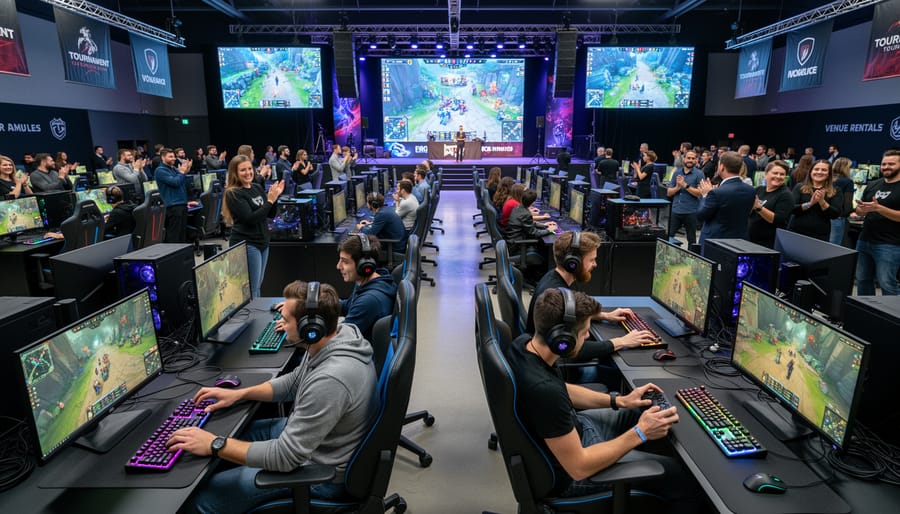
Cloud gaming is a great way to jump into a game fast, and it’s brilliant for personal play. Open the app, sign in, and you’re streaming on a phone, tablet, smart TV, or PC with no extra hardware to set up. If you’re still weighing your streaming options, our breakdown of Remote Play vs Cloud helps you pick the right fit.
But a live event is a different game. When a room full of people needs to play, compete, and watch together, streaming to one screen stops being enough. That’s where Canadian Game Rentals comes in: consoles like Xbox, Nintendo Switch, and PS4 loaded with a vast game library, gaming kiosks for hire, and full esports event setup for campus and corporate events.
Here’s a quick way to decide:
- Choose cloud play when you want a quick, personal session on a screen you already own.
- Choose a hosted esports event when you need several stations ready to go for a crowd.
- Choose campus or corporate gaming when you want a smooth, supervised setup for students or teams.
- Choose a broadcast-ready tournament when spectators need to follow every moment.
That last one is where we really shine. A professional esports broadcast brings features like live tickers and facial cams for participants, so the audience sees the action and the players’ reactions. We also run online tournaments and live streaming events, so your competition can reach people beyond the venue. Curious what goes into it? Take a look at a proven live streaming setup and you’ll see why cloud play and event-grade rentals each have their place.
Xbox Cloud Gaming FAQs
Is Xbox Cloud Gaming available in Canada?
Yes. Cloud gaming in Canada works through Xbox Cloud Gaming, so you can stream without owning a console.
Do I need Game Pass?
Not necessarily. You can stream eligible Xbox games you own, or use an Xbox Game Pass plan for a wider pool of titles.
What devices can I use?
Phones, tablets, smart TVs, PCs, and more. Check the official Xbox pages for the current list of supported devices.
Can I use a controller?
Yes, and the Xbox Nano Controller has a confirmed cloud connect flow. For other controllers, confirm compatibility on the official Xbox support pages.
Can cloud gaming run an esports event?
It’s built for personal play, not hosting a crowd. Tournaments and campus or corporate events work best with dedicated consoles, kiosks, and broadcast tools.
Still wondering about a specific game or device? Eligibility can vary by title, so a quick look at the official Xbox pages before you plan around a game saves you a headache. And if you’re organizing something bigger than a solo session, that’s where a hands-on rental setup takes over.
Getting into Xbox Cloud Gaming in Canada really is that simple. Start with an eligible game you already own or an Xbox Game Pass plan, pick a supported screen like your phone, tablet, smart TV, or PC, sign in with your Xbox account, and hit play. No big hardware, no long downloads, just you and the game.
Cloud play is brilliant for a quick personal session. But when the stakes go up, nothing beats real consoles, hands-on gaming kiosks, and a broadcast-quality setup with live tickers and facial cams. If you’re planning a tournament, a campus esports night, or a corporate event, Canadian Game Rentals can bring the full experience to you. Ready to level up your next event? Let’s get the games started.