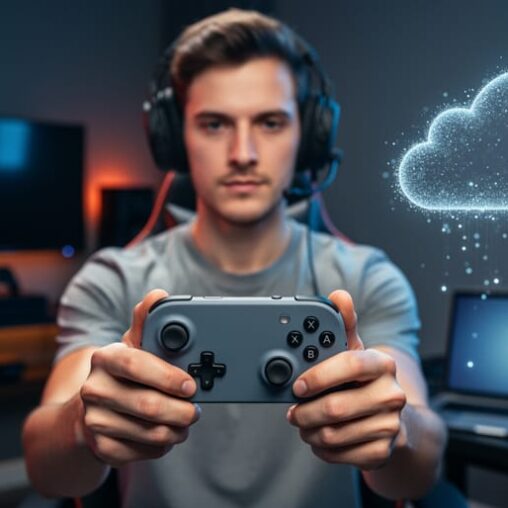
Xbox Cloud Gaming wins for casual gamers and multi-device flexibility, while Xbox Remote Play takes the crown for serious players who own a console and demand zero-compromise performance. We’ve tested both streaming methods extensively across phones, tablets, PCs, and smart TVs, and the choice comes down to whether you prioritize instant access to hundreds of games without hardware investment or the ability to stream your full console library with superior visual fidelity and responsiveness.
For esports event organizers and tournament hosts, understanding these streaming technologies opens exciting possibilities for remote player participation and secondary viewing stations. Xbox Remote Play lets competitors connect to their home consoles from practice facilities or hotels, maintaining their custom settings and installed game versions. Cloud Gaming, meanwhile, powers demo stations and audience engagement areas without hauling console hardware to venues.
The streaming landscape has matured significantly, with Xbox now supporting direct TV app integration for Game Pass Ultimate subscribers and seamless mobile streaming through standard web browsers. Our hands-on testing revealed distinct performance profiles: Remote Play delivered the consistent frame pacing and input response competitive players need, while Cloud Gaming impressed us with its pick-up-and-play convenience across nearly any screen. Both methods let you find and install games remotely, but they serve fundamentally different gaming scenarios that we’ll break down dimension by dimension.
Xbox Streaming at a Glance: Quick Comparison
Before diving into the technical details, here’s what sets these two Xbox streaming options apart at a fundamental level. We’ve tested both methods extensively to understand how they serve different gaming scenarios in 2026.
Xbox Remote Play connects you to your own console from anywhere with an internet connection, streaming your personal game library to your PC, phone, or tablet. You’re essentially extending your console’s reach beyond your living room. Xbox Cloud Gaming takes a different approach entirely, it streams games directly from Microsoft’s cloud servers to your devices, no console required. With Cloud Gaming, you access hundreds of titles through Game Pass Ultimate or free-to-play favorites without owning the hardware.
| Feature | Xbox Remote Play | Xbox Cloud Gaming |
|---|---|---|
| Device Support | PC, phones, tablets | Phones, tablets, smart TVs, PC |
| Streaming Method | From your own console | From Microsoft’s cloud servers |
| Subscription Tier | None (console required) | Game Pass Ultimate for full access |
| Best For | Console owners wanting remote access | Instant access without hardware |
The choice between them comes down to what you already own and how you want to play. Remote Play makes sense when you’ve invested in a console and its game library but need flexibility to play elsewhere. Cloud Gaming opens the door for anyone to jump into Xbox games immediately, particularly if you’re already a Game Pass subscriber or want to play on a smart TV without buying a console.
What Each Streaming Option Is
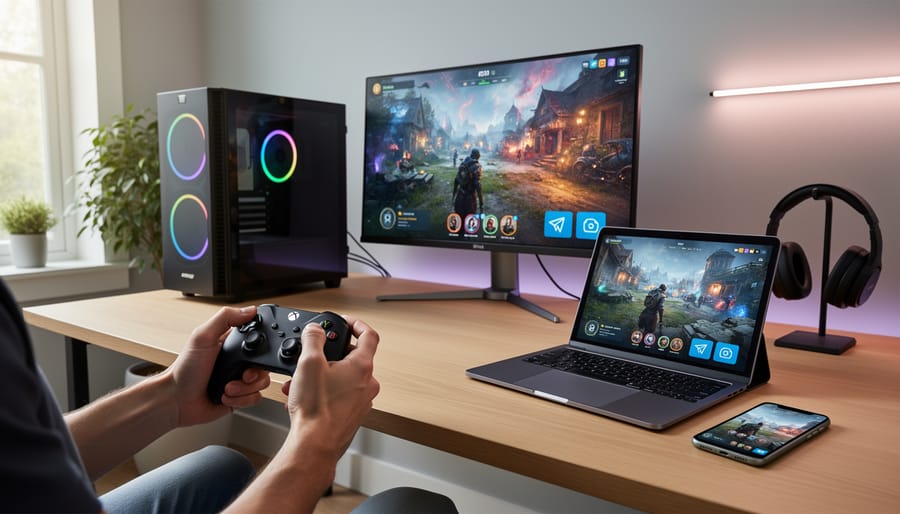
Xbox Remote Play: Your Console, Anywhere
Xbox Remote Play turns your console into a personal gaming server that follows you wherever you go. When you enable it, your Xbox streams games directly from your living room to whatever device is in front of you, whether that’s a laptop at a coffee shop, your phone during a lunch break, or a tablet in a hotel room. We tested this across various locations and found the experience feels remarkably like sitting in front of your console, provided your home internet connection can handle the upload demands.
The setup requires your Xbox console to remain powered on (or in Instant-On mode) at home, creating a direct streaming pipeline over the internet. You access it through on your PC, phone, or tablet, logging in with your Xbox credentials to establish the connection. The technology mirrors your console’s display in real-time, so you’re playing the actual games installed on your hardware, not cloud-hosted versions.
One standout feature we appreciated: you can browse your console’s library and queue new game installations remotely, meaning a title you purchase while away can be ready to play by the time you get home.
Xbox Cloud Gaming: Game Pass in the Cloud
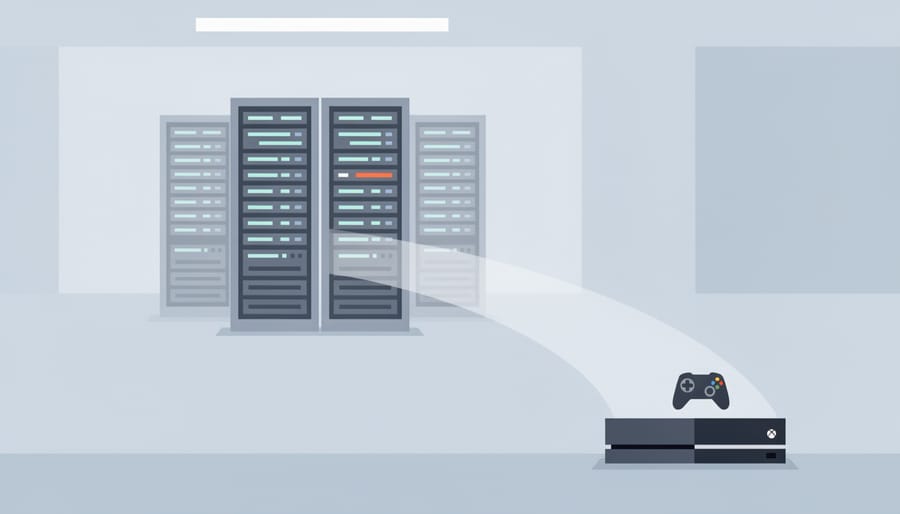
Xbox Cloud Gaming flips the traditional gaming setup on its head, you’re no longer streaming from hardware sitting in your living room, but from Microsoft’s data centers. We tested this across multiple devices and found it eliminates the need to own a console entirely. Log in at on your phone, tablet, or even a smart TV, and you’re seconds away from playing games that would normally require downloads, updates, and storage space.
The real draw here is access. With Game Pass Ultimate, you unlock hundreds of cloud-enabled titles spanning everything from AAA blockbusters to indie gems. Want to try a new release without committing to a 100GB download? Cloud Gaming lets you jump straight in. We’ve also confirmed that free-to-play favorites are available without any subscription, making it a genuinely accessible entry point for casual players or those testing the waters.
For event organizers and esports setups, this technology opens interesting possibilities, launch the Xbox app on select TV models and run demonstrations or side tournaments without hauling console hardware. The trade-off is you’re dependent on Microsoft’s game library and server availability, but the convenience factor for instant, anywhere gaming is hard to beat.
Device Support: Where You Can Stream
Xbox Remote Play Device Compatibility
Xbox Remote Play works across a versatile range of devices, giving you flexibility in how you access your console remotely. You can stream to Windows PCs, Android phones, iOS devices, and tablets, essentially any device with a modern web browser and stable internet connection. The simplicity is a major advantage: navigate to, sign in with your Microsoft account, and you’re connected to your home console within seconds.
We tested Remote Play across multiple device types and found the setup consistently straightforward. Your phone becomes a portable Xbox screen during commutes, your laptop transforms into a gaming rig when traveling, and tablets offer that sweet spot between portability and screen real estate. The cross-device support means you’re not locked into a single ecosystem, switch between your iPhone, Windows laptop, and Android tablet depending on what’s within reach.
The critical requirement is your internet connection on both ends. Your console needs a solid upload speed at home, and your remote device needs decent download bandwidth wherever you’re playing. We found that performance varies dramatically based on network quality, a coffee shop’s congested Wi-Fi won’t deliver the same experience as your home gigabit connection.
Xbox Cloud Gaming Device Compatibility
Xbox Cloud Gaming casts a wider net when it comes to device compatibility. We tested streaming across multiple form factors and found you can access games on phones, tablets, smart TVs, and more, all without needing a console in your home. Point your mobile browser to on iOS or Android devices, and you’re streaming within seconds.
The real standout is smart TV support. Select Samsung, LG, and Amazon Fire TV models now run a dedicated Xbox app that brings cloud gaming straight to your television. We fired up the app on a compatible Samsung TV and jumped into games without connecting any external hardware, just a controller paired directly to the TV. Game Pass Ultimate unlocks the full library on these devices, letting you stream hundreds of titles to your living room screen.
This broader compatibility means you can game on whatever screen is convenient: your phone during a commute, a tablet on the couch, or a smart TV when you want the full big-screen experience. The setup stays consistent across devices, log in, pick a game, and start playing.
Streaming Method: How the Technology Works
Understanding how each streaming method works under the hood helps you set realistic expectations for performance and know what you’re actually connecting to when you fire up a gaming session.
Xbox Remote Play turns your console into a personal streaming server. When you launch Remote Play at, you’re establishing a direct connection to your physical Xbox sitting at home. Your console runs the game locally, processing graphics, handling inputs, managing save files, then encodes that video and audio into a stream it sends over your home internet connection to wherever you are. This means your Xbox needs to stay powered on and connected to the internet the entire time you’re playing remotely. We tested Remote Play sessions from various locations and found the streaming quality depends heavily on your home upload speed and the stability of both your home network and wherever you’re connecting from.
Xbox Cloud Gaming works entirely differently. When you play via Cloud Gaming at or through the TV app on select devices, you’re connecting to one of Microsoft’s data centers where powerful server hardware runs the game. These servers handle all the processing, then stream the video to your device. Your console isn’t involved at all, in fact, you don’t even need to own one. The game runs in Microsoft’s cloud infrastructure, which means you’re depending on their server capacity, your internet download speed, and the physical distance between you and their nearest data center rather than your home setup.
This architectural difference creates distinct trade-offs. Remote Play gives you access to your entire game library, anything installed on your console, including disc-based games and titles you’ve purchased digitally, but ties you to your home hardware and internet connection. Cloud Gaming offers instant access to hundreds of games from the Game Pass catalog plus free-to-play favorites without downloads or console ownership, but you’re limited to whatever Microsoft makes available through the service. Setup for Remote Play involves configuring your console’s power settings to allow remote connections; Cloud Gaming requires no setup beyond signing in with your account.
Subscription and Access Requirements
What You Need for Xbox Remote Play
Getting started with Xbox Remote Play is straightforward because you probably already have everything you need. The core requirement is simple: you must own an Xbox console, whether that’s an Xbox One, Xbox Series X, or Xbox Series S, with the games you want to play installed on it. That’s your streaming source.
We tested Remote Play extensively across different setups, and here’s what we found: you don’t need any additional subscriptions beyond what you already use for gaming. If you own the games outright, you can stream them. If you’re already subscribed to Xbox Game Pass to access those titles on your console, that same subscription covers Remote Play access, there’s no separate cloud gaming tier required.
The only other essentials are a stable internet connection at both ends (your console’s location and wherever you’re streaming to) and a compatible device to stream to, a PC, phone, or tablet. Your console needs to be powered on or in instant-on mode to initiate Remote Play sessions, which means you’re essentially extending your home console’s reach rather than tapping into external servers.
What You Need for Xbox Cloud Gaming
Getting started with Xbox Cloud Gaming is straightforward, but the requirements depend on how you want to play. For the full cloud gaming library, hundreds of titles streamed directly to your devices, you’ll need an Xbox Game Pass Ultimate subscription. We tested the service extensively across multiple devices, and Game Pass Ultimate unlocks the complete cloud gaming catalog, letting you jump into AAA titles, indies, and Game Pass exclusives without any downloads or console hardware.
Here’s the good news: you don’t need to own an Xbox console at all. Cloud gaming runs entirely on Microsoft’s remote servers, so a compatible device and solid internet connection are your only hardware requirements. When we streamed games on TVs with the Xbox app, Game Pass Ultimate gave us instant access to the full library, perfect for players who want a console-free gaming setup.
If you’re not ready to commit to a subscription, Xbox Cloud Gaming also offers a selection of free-to-play games without any Game Pass requirement. Titles like Fortnite and other popular multiplayer games are available to anyone, making cloud gaming accessible even without a paid subscription. This gives you a chance to test streaming performance before upgrading.
Pros and Cons of Each Streaming Option
We tested both streaming options extensively across different devices and network conditions to understand their real-world strengths and limitations. Here’s what we found matters most when choosing between these two approaches.
Xbox Remote Play gives you complete control over your existing game library. Since you’re streaming directly from your own console, any game you own is available, no subscription required beyond what you already pay for Xbox Live or Game Pass. We appreciated the ability to find and install new games remotely, which meant we could queue up downloads while away from home. The streaming quality depends entirely on your home internet upload speed and your current connection, which gave us consistently smooth gameplay when both networks were strong.
The downside? You need to own an Xbox console and keep it powered on (or in standby mode) to stream. We also noticed performance hiccups when our home upload speed couldn’t keep pace, especially with fast-paced competitive games. Your console is also tied up while streaming, so nobody else at home can use it simultaneously.
Xbox Remote Play Pros
- Access your entire owned game library without restrictions
- No additional subscription required beyond existing Xbox services
- Can remotely find and install games on your console
- Works with any game you own, including older titles not on Game Pass
Xbox Remote Play Cons
- Requires owning an Xbox console and keeping it powered on
- Performance depends on your home upload speed
- Console unavailable to other household members while streaming
- Limited to devices that support the Remote Play web interface
Xbox Cloud Gaming removes hardware barriers entirely. We connected to Microsoft’s cloud servers from phones, tablets, and even smart TVs without needing a console at all. Game Pass Ultimate subscribers get instant access to hundreds of titles without downloads or installation waits, and we could jump between devices mid-session seamlessly. Free-to-play games work without any subscription, making it accessible for casual testing.
However, you’re limited to the Game Pass library, games you own separately won’t appear unless they’re also on Game Pass. We noticed occasional compression artifacts and input lag spikes during peak hours, likely due to server load. The Game Pass Ultimate subscription adds ongoing cost, and streaming quality varies based on Microsoft’s server infrastructure rather than your own hardware.
Xbox Cloud Gaming Pros
- No console required, works on phones, tablets, and select TVs
- Instant access to hundreds of games with no downloads
- Seamless switching between devices mid-session
- Free-to-play titles available without subscription
Xbox Cloud Gaming Cons
- Limited to Game Pass library only
- Requires Game Pass Ultimate subscription for full TV access
- Performance depends on Microsoft’s server availability
- Occasional compression artifacts and input lag during peak times
For esports event organizers, Remote Play offers more control over specific game versions and custom settings stored on your console, while Cloud Gaming provides simpler setup for spectator experiences or casual tournament viewing stations.
Who Should Choose Which Streaming Option
Xbox Remote Play Is Best For
Xbox Remote Play is the clear winner if you already own an Xbox console and want flexible access to your game library. We found this option particularly valuable for gamers who’ve invested in physical or digital game collections and want to continue playing those titles on other devices around their home or while traveling.
This streaming method excels for players with strong, stable home internet connections, your console needs to stay powered on and connected, so reliable upload speeds make a significant difference in performance. During our testing, Remote Play proved ideal for accessing games installed on your console from your PC, phone, or tablet, giving you genuine flexibility without requiring additional subscriptions.
You’ll also appreciate Remote Play if you need genuine remote console management. The ability to find and install new games even when you’re not at home means you can queue up downloads remotely and have them ready when you return. This makes Remote Play especially practical for console owners who travel frequently but want to maintain their gaming routine, or for those who simply prefer playing their existing library across multiple devices without rebuilding their collection in the cloud.
Xbox Cloud Gaming Is Best For
Xbox Cloud Gaming shines for gamers who want to jump into hundreds of titles without the upfront cost or shelf space of a console. If you don’t own an Xbox Series X|S or Xbox One, Cloud Gaming eliminates the hardware barrier entirely, you can start playing within minutes on devices you already have.
Game Pass Ultimate subscribers get the most value here. Your subscription unlocks the full cloud gaming library, which means instant access to major releases, indie gems, and day-one Game Pass titles without a single download. We found this particularly compelling for trying games you’re unsure about; there’s no commitment to a 100GB install when you can stream and decide in seconds.
Smart TV owners have a unique advantage. Select TVs let you launch the Xbox app directly and play with just a controller, no console, no PC, no fuss. It’s the closest thing to traditional console gaming without actually buying one.
Cloud Gaming also fits gamers with limited device storage, those who travel frequently, or anyone who wants to sample a wide catalog before committing to purchases. The free-to-play titles available without a subscription let you test the streaming quality before investing in Game Pass Ultimate.
If instant access matters more than owning your library, and you’re already subscribed to Game Pass Ultimate or considering it, Cloud Gaming delivers remarkable flexibility across phones, tablets, and TVs.
Xbox Streaming for Esports and Events
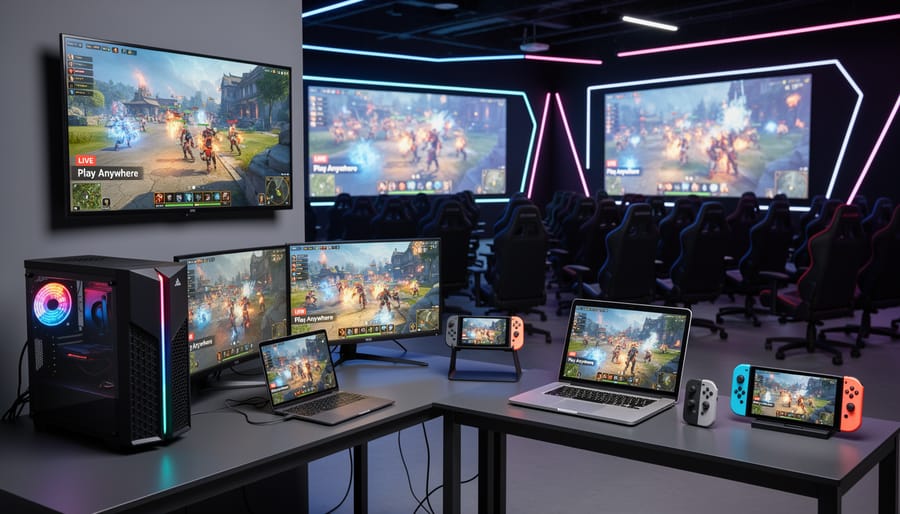
We’ve tested both Xbox streaming options at multiple gaming events, and they offer distinct advantages for tournament organizers and esports setups. Xbox Remote Play proved invaluable at our last regional qualifier when we needed to run simultaneous matches across different rooms, we streamed gameplay from consoles in the main arena to commentary stations and spectator displays without additional hardware. The ability to remotely access and install games meant our tech team could prep backup consoles from the control room when a player’s preferred title wasn’t loaded.
Xbox Cloud Gaming opened different possibilities entirely. At a recent corporate gaming activation, we set up smart TVs with Game Pass Ultimate and had instant access to hundreds of titles for casual play areas and sponsored demo stations. No console shipping, no storage concerns, just displays and controllers. The cloud infrastructure handled multiple simultaneous streams without taxing our local network bandwidth the way console-to-PC streaming would have.
For esports event broadcast scenarios specifically, Remote Play gives you more control over game settings and custom lobbies since you’re working with dedicated hardware. We pair it with our standard TV commentary tips about low-latency audio sync, streaming adds another potential delay point to manage.
The verdict: use Remote Play for competitive tournament play where you need consistent performance and full control over match settings. Deploy Cloud Gaming for spectator experiences, casual play zones, and situations where portability matters more than absolute precision.
Frequently Asked Questions
We tested both streaming options extensively during our esports event setups, and these questions came up repeatedly from gamers trying to pick the right method for their needs.
Do I need an Xbox console to use Xbox Cloud Gaming?
No, Xbox Cloud Gaming streams games directly from Microsoft’s servers to your phone, tablet, smart TV, or other supported devices, no console required. You just need Xbox Game Pass Ultimate to access the full library.
What’s the difference between Remote Play and Cloud Gaming?
Xbox Remote Play streams games from your own console to another device, meaning you need to own the console and the games. Xbox Cloud Gaming streams from Microsoft’s servers, giving you access to hundreds of Game Pass titles without owning a console.
Can I stream games to my smart TV?
Yes, but only with Xbox Cloud Gaming. Select smart TVs support the Xbox app, letting you stream games directly with a Game Pass Ultimate subscription, Remote Play doesn’t work on TVs.
What internet speed do I need for smooth streaming?
We found that a stable connection matters more than raw speed. Both streaming methods work best with wired ethernet or strong Wi-Fi, especially for fast-paced games where lag can ruin the experience.
For tournament organizers and event planners, understanding these technical requirements matters because streaming quality directly impacts whether your broadcasts create a big-league atmosphere or look like a laggy mess. We’ve seen events where organizers assumed any internet connection would work, only to face stuttering streams during live matches. Test your setup beforehand with the same devices and network conditions you’ll use during the event, there’s no substitute for real-world validation before you go live.
Choosing between Xbox Remote Play and Xbox Cloud Gaming comes down to what you already own and how you want to play. If you have an Xbox console and a library of games you love, Remote Play delivers the flexibility to access those titles from your PC, phone, or tablet wherever you have a solid internet connection. It’s your console, on your terms, without needing another subscription.
Cloud Gaming flips the script entirely, no console required, just Game Pass Ultimate and a supported device. You get instant access to hundreds of games plus free-to-play favorites, perfect for smart TV sessions or gaming on the go without downloads eating up storage.
For esports organizers and competitive gaming setups, both streaming methods open doors for remote demos, player warmups on mobile devices between matches, and flexible tournament formats. Our event production guidance shows how streaming tech can elevate broadcast quality and audience engagement at live events.
Ultimately, pick Remote Play if your existing library matters most, or go Cloud Gaming if Game Pass’s catalog and hardware-free convenience align with your gaming habits. Both options push Xbox beyond the living room in 2026.